Spotify · Windows 11 · one native app
Your music, on the desktop itself.
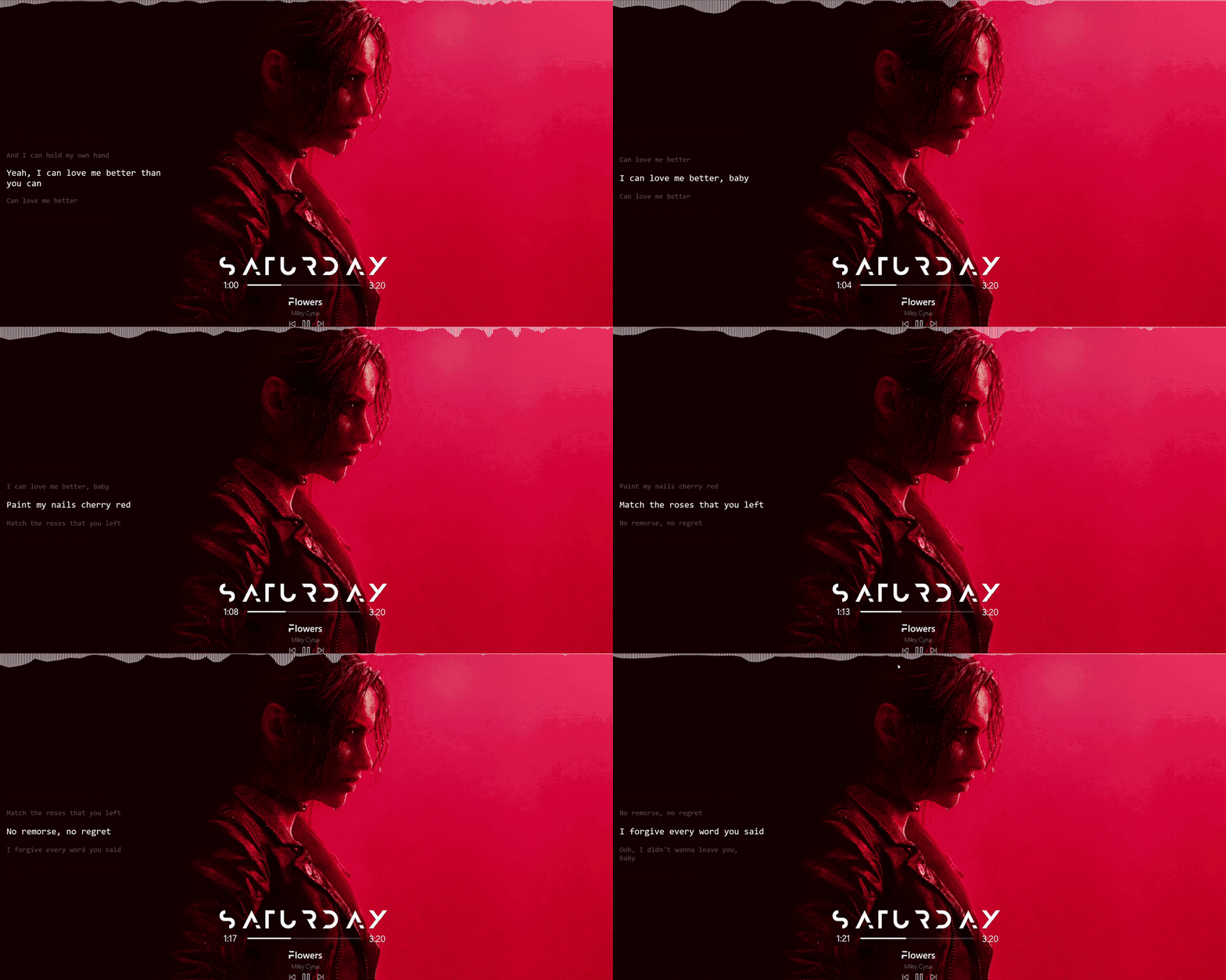
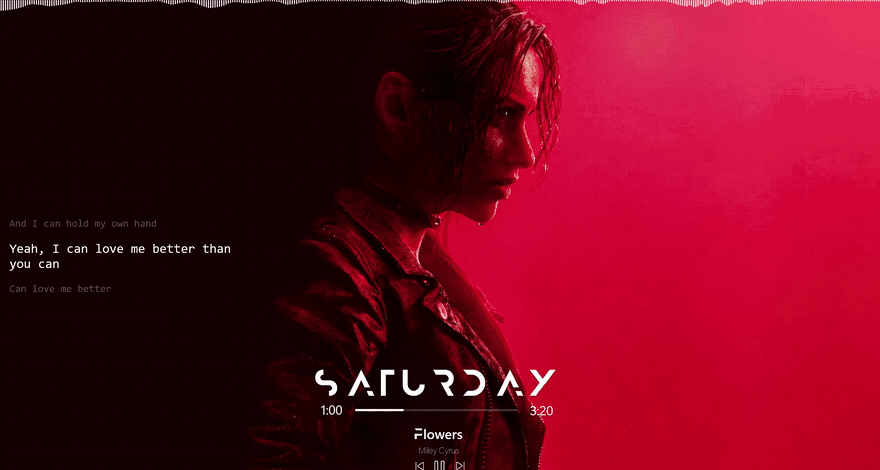
Deskbeat draws four widgets on the Windows 11 desktop for whatever Spotify is playing: a spectrum visualizer, synced lyrics, a clock and a now-playing player. It is built as a light alternative to a Rainmeter setup.
- No Spotify login
- No telemetry
- No installer
- MIT licensed
- Runs on
- Windows 11
- Needs
- The Spotify desktop app
- Built with
- Rust and Direct2D
- Install
- One exe, no installer
What you get
Four widgets, and no skin engine.
There are no plugins, no scripts and no user-authored skins. Every visual and behavioural parameter of the four widgets is a setting instead.
Visualizer
A spectrum of Spotify's audio only, not your games or calls. Bars, mirrored bars or a wave, and it can span the whole width of the screen.
Lyrics
Time-synced lyrics, followed word by word where the song has timed words and line by line where it does not. What is being sung either lights up at once or fills as it is sung. Word timing comes from a LyricsPlus server and is never guessed; line timing comes from LRCLIB. Cached on disk.
Player
Album art, title, artist, a progress bar you can click to seek, and previous, play/pause and next.
Clock
Day, time and date, each of which can be hidden, restyled or given a format of its own.
Edit layout
The clock and the player have no box. Press Ctrl+Alt+E and drag the day, the time, the date, the art, the title, each button, the progress bar and both times anywhere, one at a time. Shift+click several to move them as one.
Every detail is a setting
Four one-click looks, then a font, size, weight, colour, opacity, letter spacing and capitals setting for every piece of text. Each can also run across, down or up, with its letters upright or lying sideways. Everything is stored in one TOML file that reloads when you save it.
How it works
One process that sleeps until the song moves.
A Rainmeter setup re-runs interpreted measures on timers and redraws whether or not anything changed. The reason Deskbeat exists is that cost.
- 1
Windows says what is playing
The track, its position, the album art and the play, pause and skip buttons come from the Windows media session API, filtered to Spotify. There is no Spotify Web API, no client ID and no OAuth, so it works on free accounts and needs no setup.
- 2
It listens to Spotify alone
The visualizer captures Spotify's own output through WASAPI process loopback, so it moves to the music and not to a game or a call. The audio is turned into bar heights and discarded; nothing is recorded or written to disk.
- 3
It draws only what changed
Each widget is compiled, sleeps until something it shows has changed, and is not drawn at all while it is covered. The clock wakes once a minute, lyrics at the next line, the player once a second.
How it stays light
- No webview and no runtime. One Rust process drawing with Direct2D.
- Event-driven. The visualizer runs only while there is sound.
- Nothing hidden is drawn. A widget under a maximized or fullscreen window stops entirely.
- Low-power GPU. On a laptop with two GPUs it uses the integrated one.
The cost
What it will not do.
What is verified and what is not is written down in the repository. Nothing here is hidden because it is inconvenient.
- It needs Windows 11 and the Spotify desktop app playing on the same PC. Playback sent to another device through Spotify Connect is not seen.
- The exe is not code-signed, so Windows SmartScreen warns the first time you run it.
- Word timing depends on community-run LyricsPlus servers. When none answers, lyrics fall back to line timing from LRCLIB.
- Memory use measured about 54 MB, above the 40 MB this was aiming for.
- The settings panel, dragging in edit layout, the transport buttons and the word-by-word fill staying in time with a song are checked only by automated tests and rendered snapshots, not by hand.
Get it
One file, from GitHub Releases.
Each release carries the exe named for its version, a SHA256SUMS.txt and a build provenance attestation, so a download can be checked against the workflow that built it.
- 1Download Deskbeat-<version>.exe from the latest release. There is no installer.
- 2Run it. SmartScreen asks first: More info, then Run anyway.
- 3It lives in the notification area. Double-click its icon for settings, or right-click it for a small menu.
- 4Play something in the Spotify desktop app.
Free and MIT licensed. There is no account, no login and no telemetry: the source is in the repository, and the release is built from it by GitHub Actions.